
Let the people in your app sell
Your users become sellers on Stripe Connect, list what they sell inside your app, and get paid. Run it as a marketplace that takes the payment, or a storefront where each seller is paid directly. You set the fee on every sale.
Two shapes, one setup
Choose who the buyer pays when you set selling up. Everything else on this page works in both.
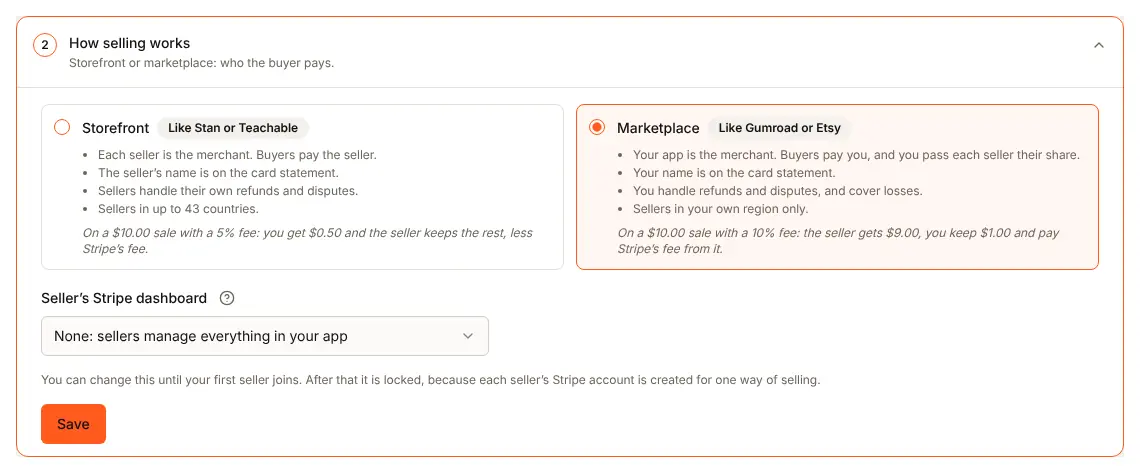
Marketplace
The buyer pays your app. Stripe charges on your account and sends each seller their share, less your fee.
- You answer refunds and disputes, from the console or your server
- One Stripe page for a cart that spans several sellers
- Stripe Tax, when on, runs on your account
- Sellers give a contact email and onboard with Stripe inside your app
Storefront
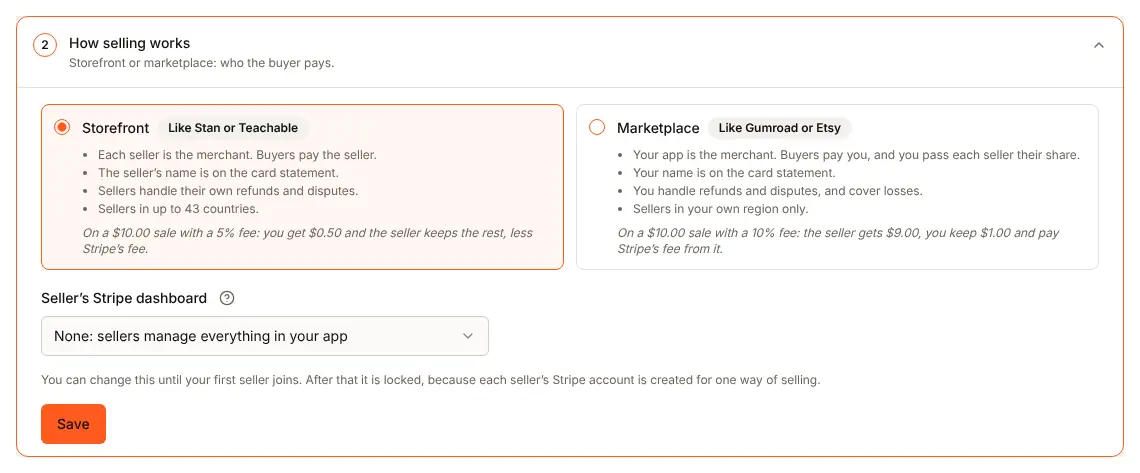
The buyer pays the seller. Stripe charges on the seller's own account and sends your fee to you.
- Sellers refund their own sales from your app, and you can too
- A cart across sellers is paid one seller at a time, each step on its own
- Stripe Tax, when on, runs on each seller's account
- Stripe's processing fee is the seller's, or yours if you choose
Everything a sale needs
From what can be listed to the money reaching the seller's bank.
Items and item types
You design what can be sold in the console: the fields a seller fills in, how it may be priced and what a buyer gets. Sellers list items inside your app, never in a BuildBase login, and you can review each one before it goes live.
List a coaching session: add a title, a price and the message your buyer reads after paying.
Read about items and item types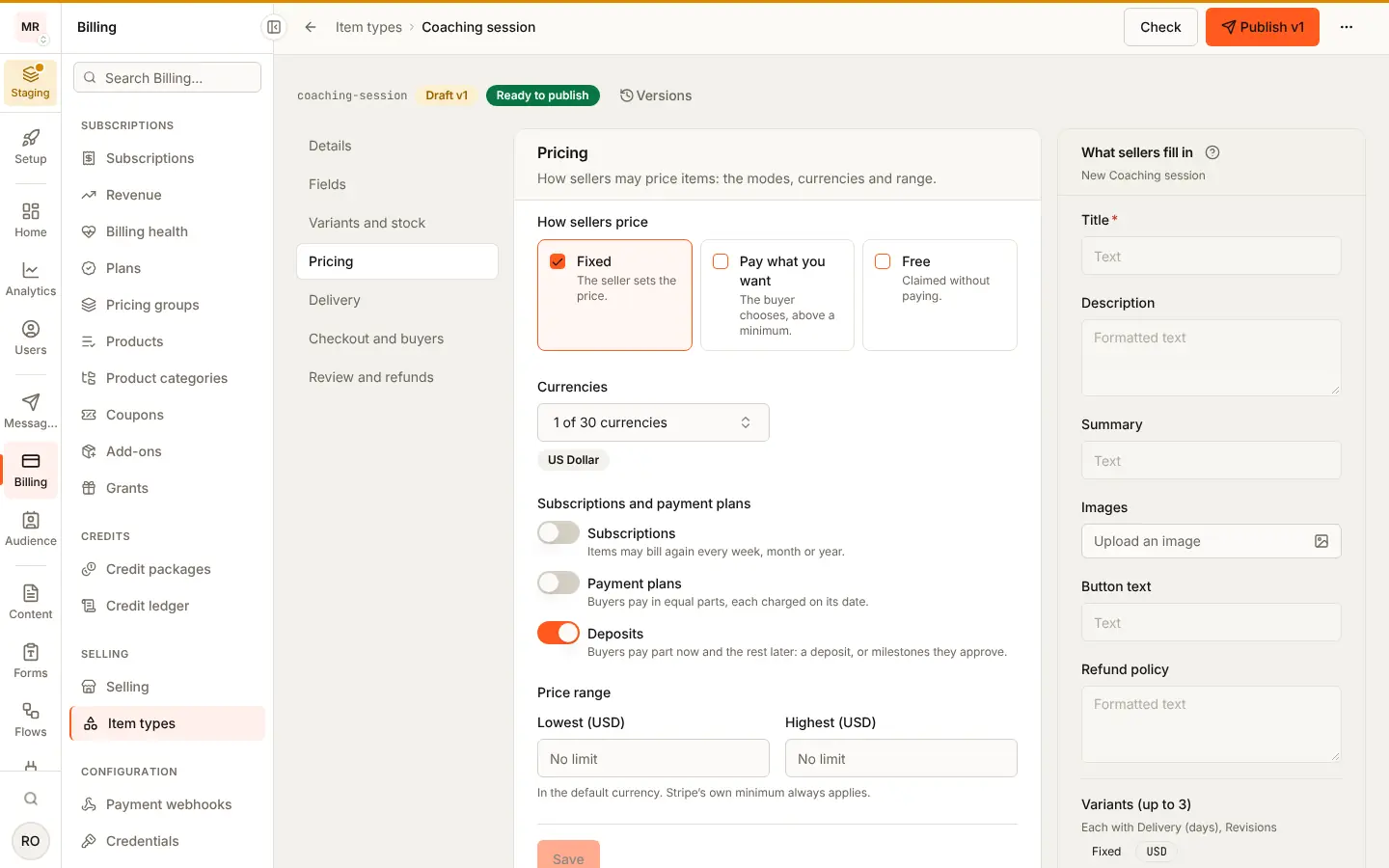
Checkout and orders
One button opens Stripe's checkout. Stock is held while the buyer pays, and every order records what was bought, your fee and the seller's share. Buyers get what they paid for at once: a message, a link, access in your app, files or licence keys.
Paid. Your session is booked, and the seller will be in touch.
Marketplace: the charge is on your account. Storefront: on the seller's.
Read about checkout and orders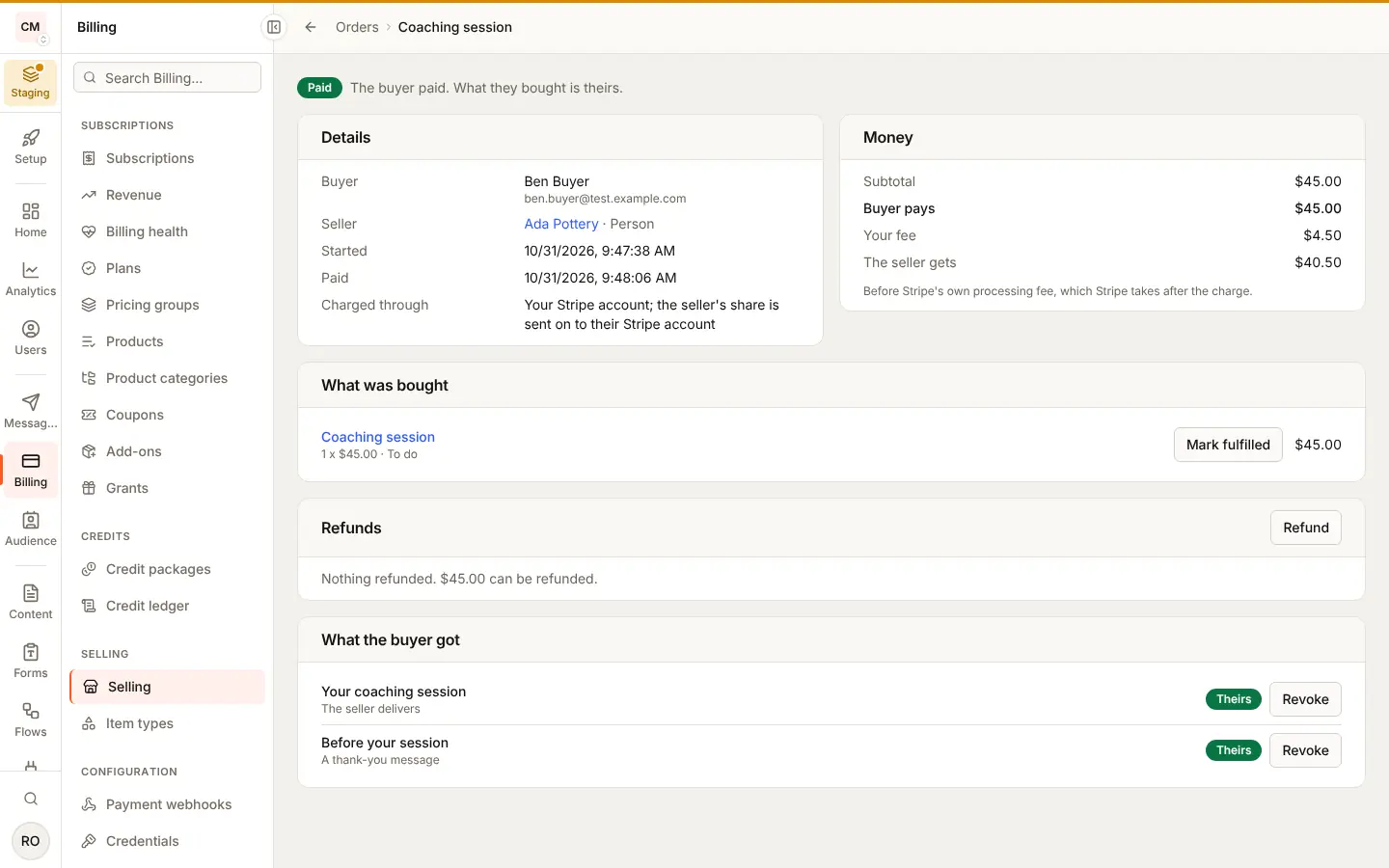
Carts across sellers
A buyer, signed in or a guest, pays for items from several sellers in one checkout. Each seller gets an order of their own, and refunds stay per order.
Two sellers, one cart. Check out.
Marketplace: one Stripe page, and each seller is sent their share. Storefront: one page per seller, in turn.
Read about carts across sellers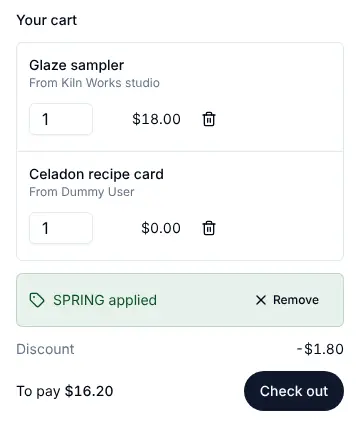
Subscriptions
Sellers sell monthly or yearly prices with a free trial, an introductory price or a set number of payments. Buyers move between tiers, cancel at the end of the period and change their mind before then.
Intro price for your first two payments, then the regular price every month.
Marketplace: the subscription lives on your account. Storefront: on the seller's, with its events reaching you through your Connect endpoint.
Read about subscriptions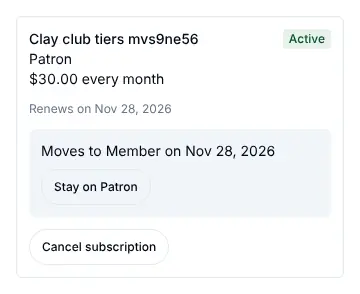
Paying in parts
A one-time price paid as a deposit and a balance, as milestones the buyer approves, or in installments charged on their dates. The buyer has what they bought from the first part.
Milestone 2 is ready. Approve and pay.
Read about paying in parts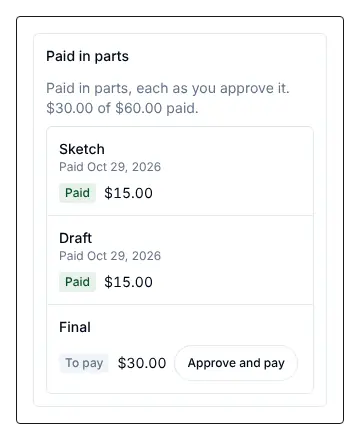
Coupons
Codes for money off: yours on every seller's items, or a seller's on their own. The discount comes off before your fee, so you and the seller share it in proportion.
SPRING takes 10% off your first payment.
Read about coupons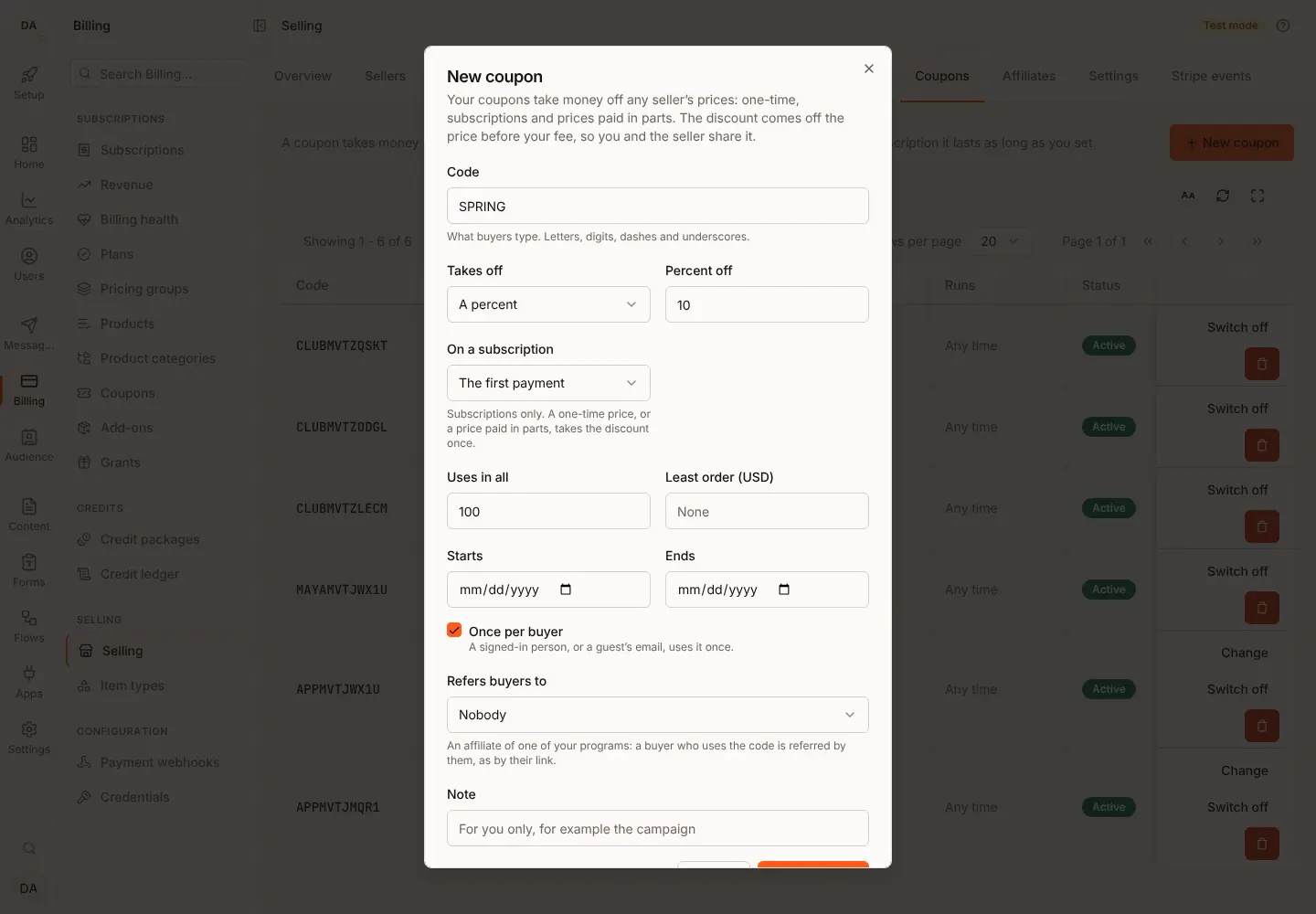
Bundles
A seller sells several of their own items together at one price. The buyer gets everything each included item gives, as if bought on its own.
Course, ebook and a call, together.
Read about bundlesOptions
Sizes, colours and other axes: the buyer picks a value per axis, and each combination has its own price and stock.
Size M, Red. One left.
Read about options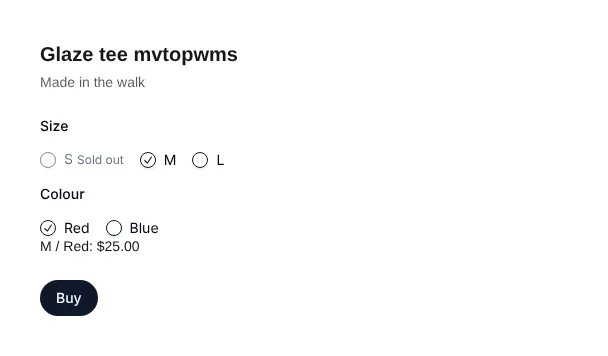
Bookings
Sell a time on the seller's calendar: weekly hours, seats per slot, held while the buyer pays and confirmed once paid, then cancelled or moved within the seller's rules.
Tuesday at 10:00, your time. Book.
Marketplace: a seller moves a booking, and you cancel with a refund. Storefront: the seller does both.
Read about bookings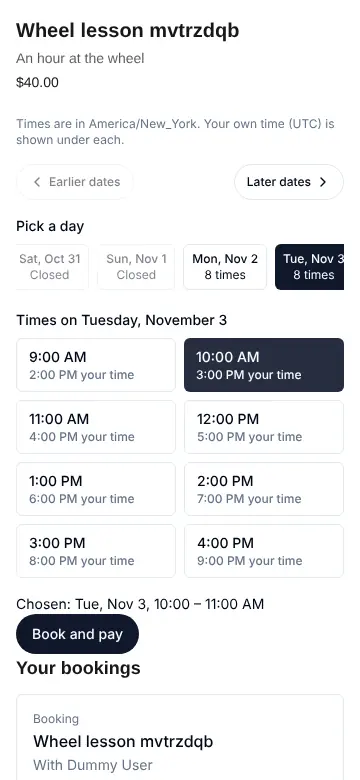
Affiliates
People in your app earn a commission on the buyers they send, through your programs or a seller's. Commissions are held, then paid out by Stripe transfer, PayPal, a Wise batch file or by hand.
Share your link. You earn on every sale it brings.
A seller's program comes off the seller's share: a smaller transfer in the marketplace shape, a larger fee in the storefront shape.
Read about affiliates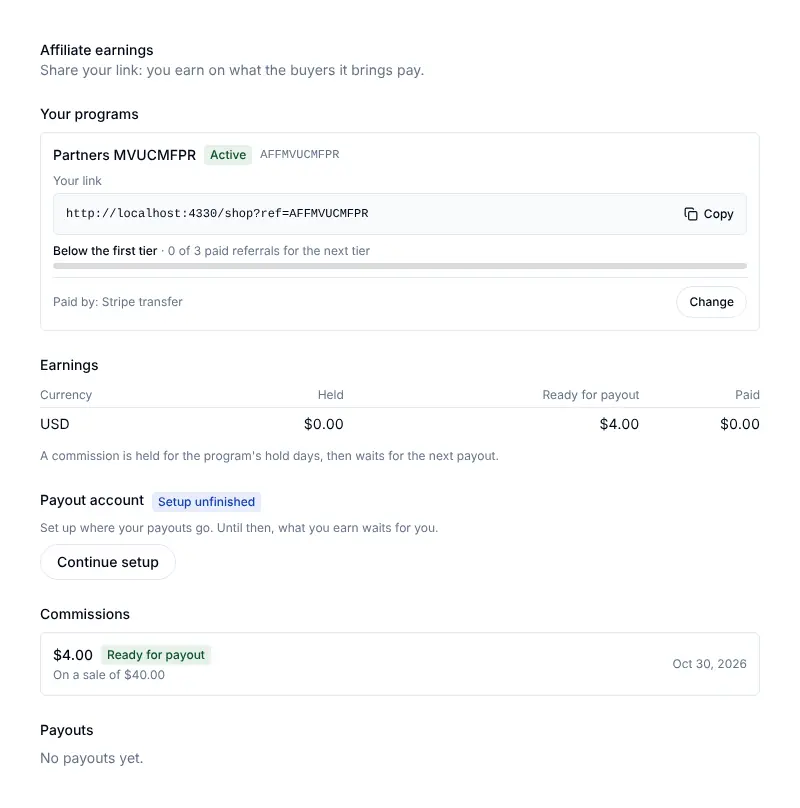
Shipping and returns
Rates at checkout, the address on Stripe's page, shipments with tracking, labels through your own EasyPost or Shippo account, and returns the seller approves. Buyers hear when it ships and when it arrives.
Your order is on its way. Track it.
Read about shipping and returns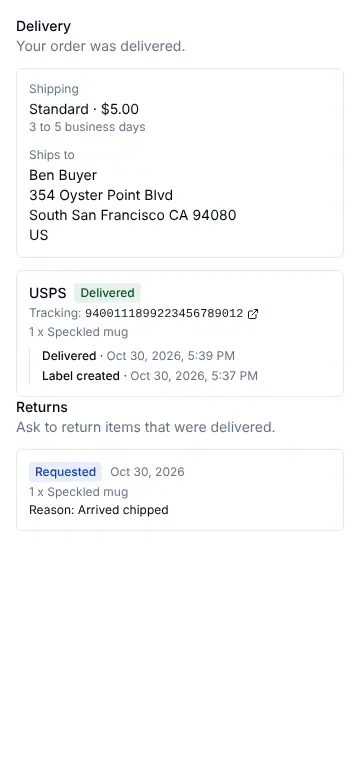
Tax
Turn on Stripe Tax and Stripe works out the tax on each checkout, each renewal and each part. The order keeps the tax apart from your fee and the seller's share.
Subtotal, tax and total, on every order.
Marketplace: on your Stripe account. Storefront: on each seller's.
Read about tax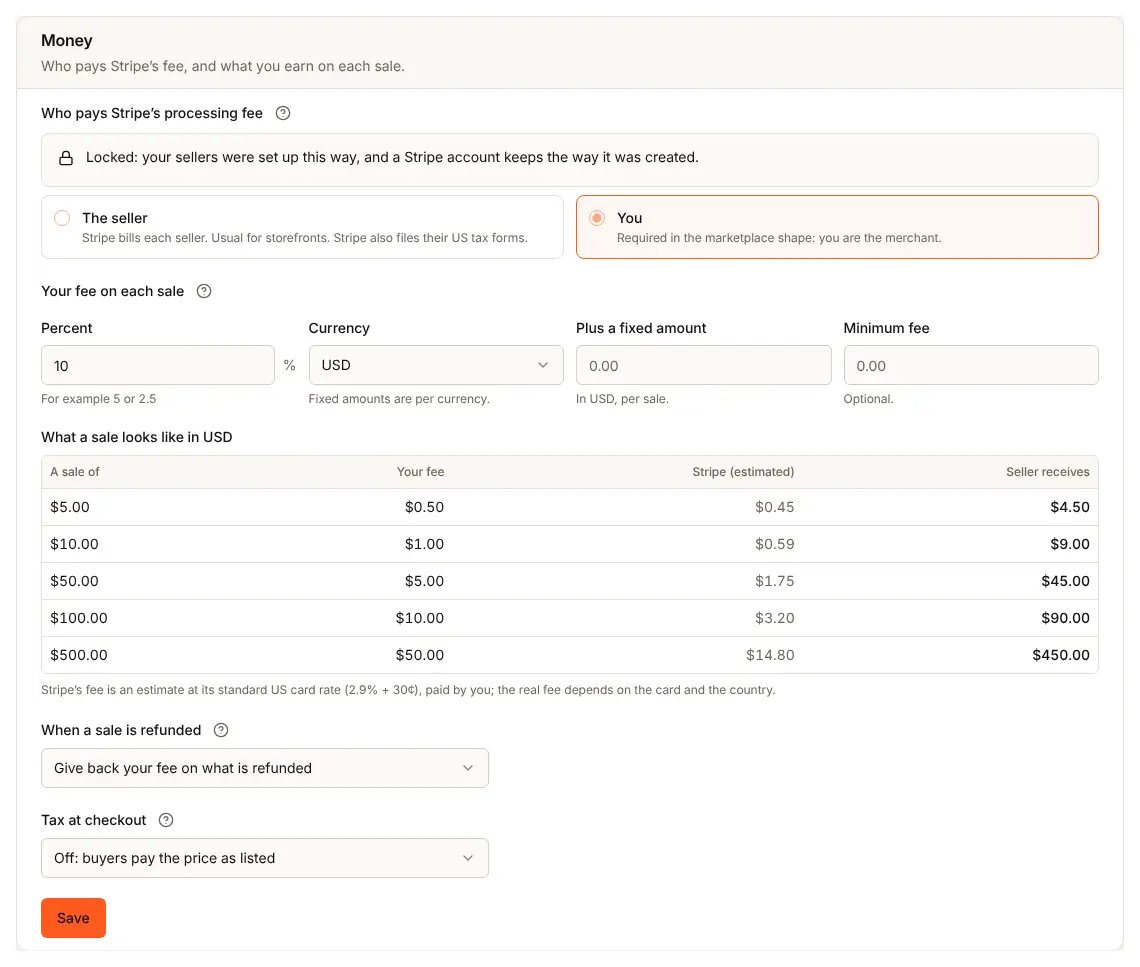
Payouts and exports
Stripe pays each seller's balance to their bank, and sellers see their payouts inside your app. You and each seller export paid orders as a spreadsheet for the books.
Payouts and balance: what is ready, what is on its way.
Read about payouts and exports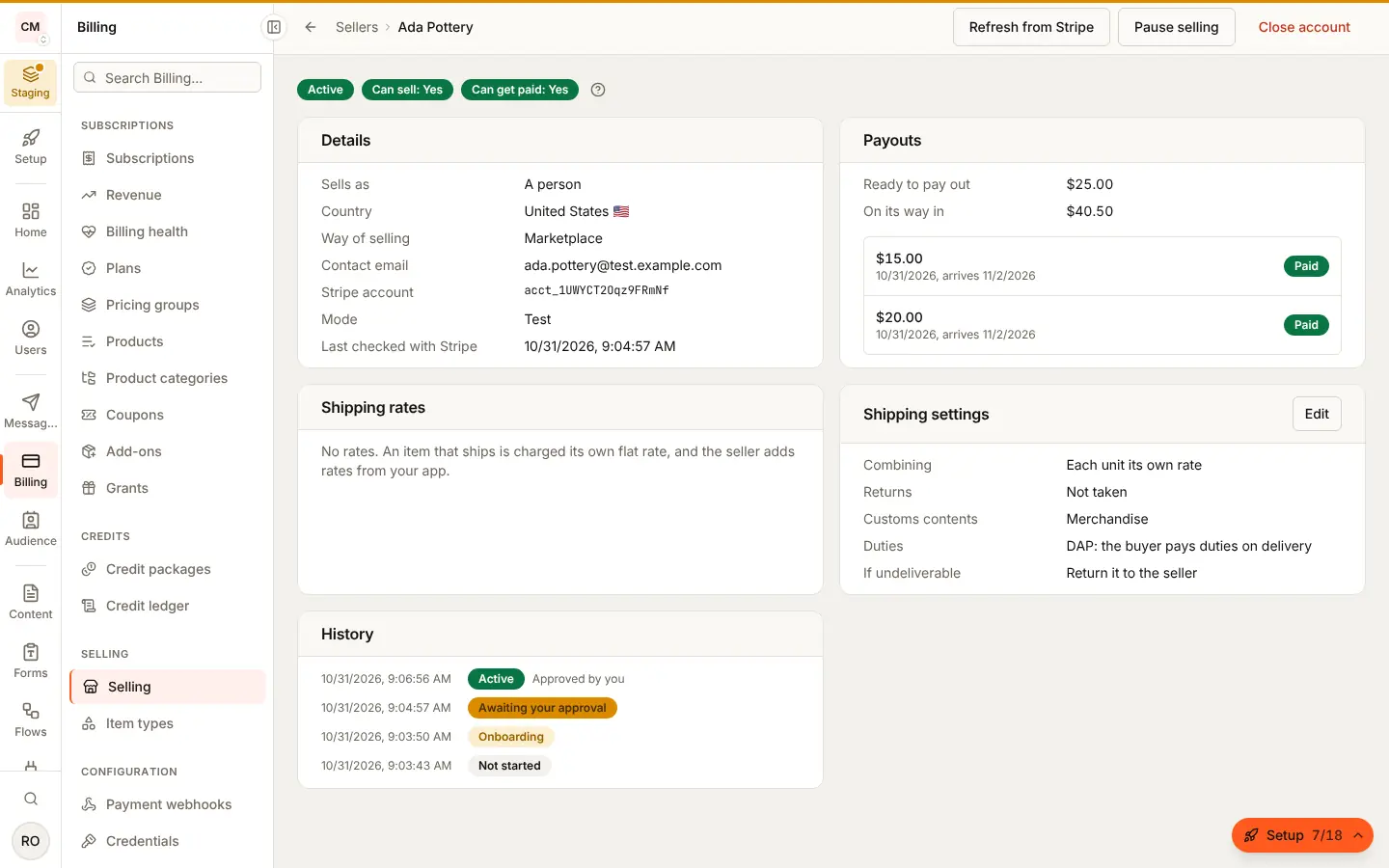
Seller screens and a buy button
Ready screens for sellers and hooks for your own, in @buildbase/sdk. From 1.2.0; the server routes work with any version.
import { SellerHome, SellerItems, SellerSales } from '@buildbase/sdk/react';

export function SellingPage() {
  return (
    <>
      <SellerHome subject={{ user: true }} />
      <SellerItems subject={{ user: true }} />
      <SellerSales subject={{ user: true }} />
    </>
  );
}import { BuyButton, usePublishedItems } from '@buildbase/sdk/react';
export function Shop() {
const { items } = usePublishedItems({ typeKey: 'coaching-session' });
return items.map((item) => {
const variant = item.variants[0];
return (
<BuyButton
key={item._id}
itemId={item._id}
variantId={variant.id}
priceId={variant.prices[0].id}
/>
);
});
}Test in Staging, then go live
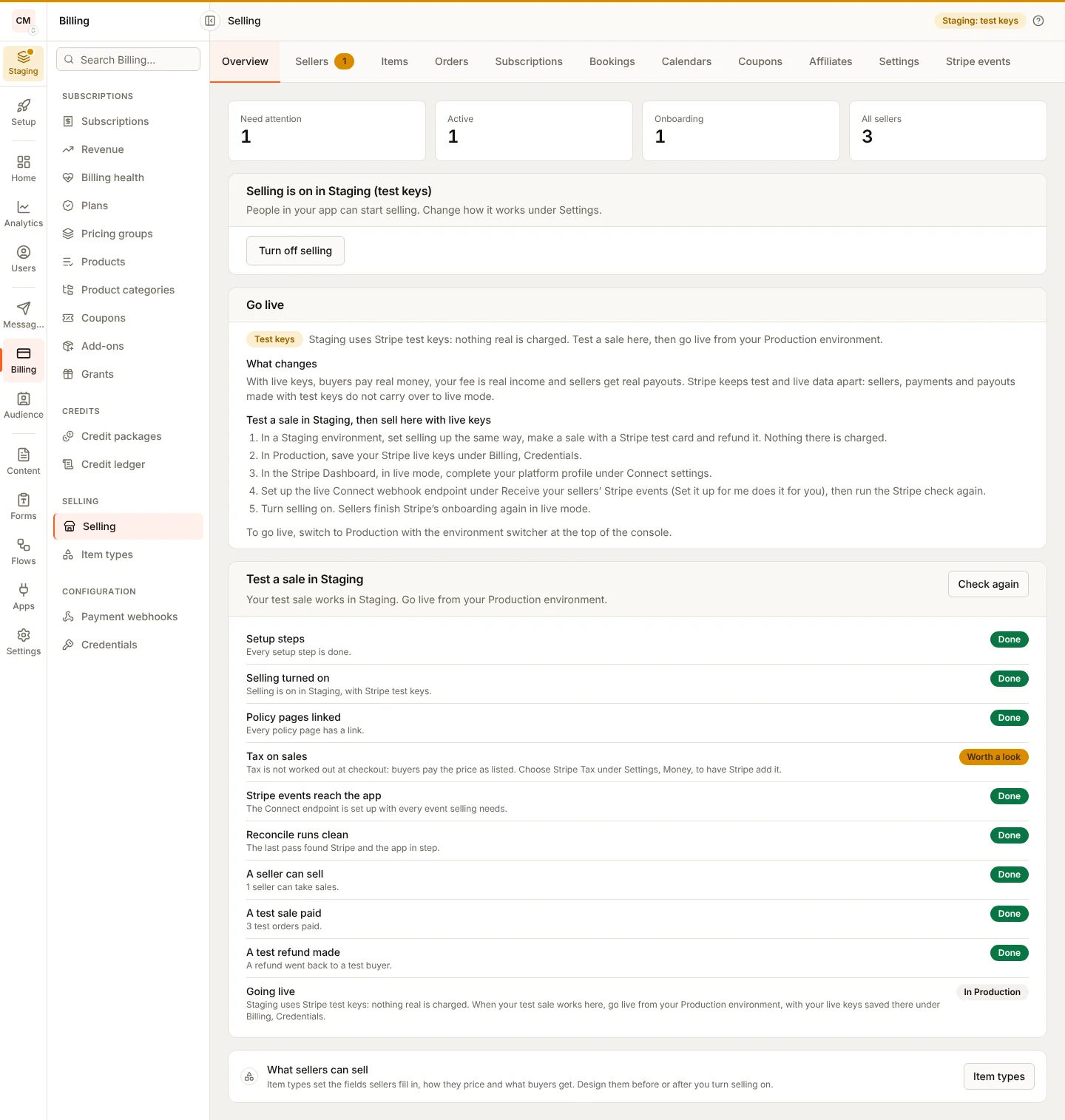
Each environment sells with its own Stripe keys: test keys in Staging, where nothing real is charged, then live keys in Production. The console checks each step before you switch.
Set it up in Staging
In a Staging environment, which takes Stripe test keys only, save your test keys, choose a shape, set your fee, your terms and who can sell, and turn selling on. Nothing real is charged.
Make a test sale end to end
Still in Staging, onboard a test seller, buy with a Stripe test card, fulfil it and refund it. The console ticks off each step it can check.
Go live in Production
In your Production environment, once live selling is open for your app, set selling up, save your live keys, set up the live Connect endpoint and turn selling on. Sellers onboard again in live mode.
Frequently Asked Questions
What is the difference between a marketplace and a storefront?
In a marketplace the buyer pays your app: Stripe charges on your account, you answer refunds and disputes, and each seller is sent their share. In a storefront the buyer pays the seller on their own Stripe account, the seller answers their own refunds and disputes, and your fee is sent to you. You choose once, before the first seller joins.
Whose Stripe account is used?
Yours. Selling runs on Stripe Connect with the keys you save in the console, and each seller gets a Stripe account of their own through Stripe's onboarding inside your app. Your app never handles their identity documents or bank details.
Can I try it without real money?
Yes. Test in a Staging environment, which takes Stripe test keys only: make a sale with a Stripe test card and refund it, and nothing real is charged. Then go live in your Production environment with your live keys, once live selling is open for your app.
Do my sellers need a BuildBase account?
No. Sellers start selling, list items and see their sales inside your app. Only you and your team use the BuildBase console.
Make your first test sale
Save your Stripe test keys, choose marketplace or storefront, and follow the guide from a seller onboarding to a refund.